Why Your Webcam Looks Blurry
How To Fix Your Blurry Camera (Easy)
1/13/20263 min read
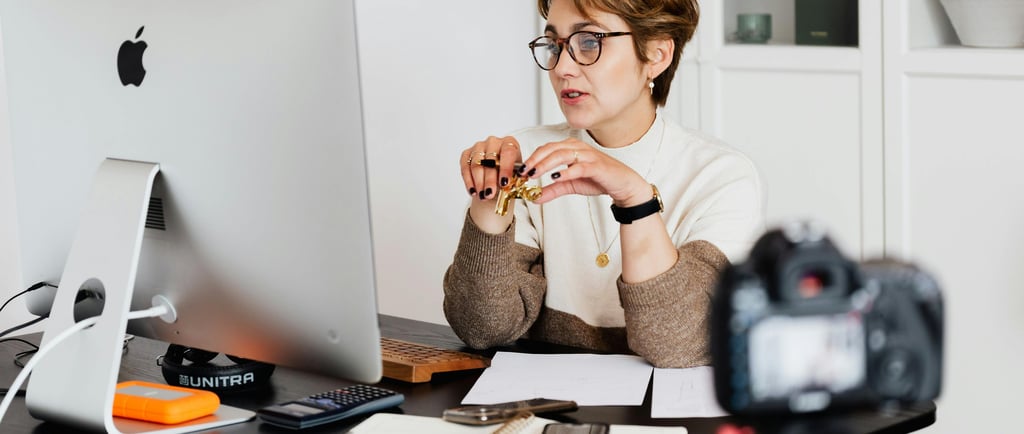

Why Your Webcam Looks Blurry (And How to Fix It)
A blurry webcam can be incredibly frustrating, especially if you’re streaming, recording YouTube videos, or joining important video calls. Many people assume the problem is low resolution, but in reality, that’s rarely the main issue. Even a “1080p webcam” can look soft and unprofessional if a few key factors aren’t right.
Let’s break down why your webcam looks blurry, and when upgrading your camera actually makes sense.
1. Poor Lighting Is the #1 Cause
Webcams struggle the most in low-light environments. When there isn’t enough light, the camera increases digital noise reduction and lowers sharpness, which makes the image look blurry or washed out.
Quick fix:
Add a light source facing you (a desk lamp or ring light)
Avoid strong backlighting (windows behind you)
If better lighting improves your image but it still looks soft, the issue may be hardware-related.
2. Fixed Focus vs Autofocus
Many budget webcams use fixed focus, meaning the camera is only sharp at one specific distance. If you’re slightly too close or too far away, the image will never look crisp.
Webcams with autofocus constantly adjust to keep your face sharp, especially important if you move while talking or streaming.
3. Small Sensors = Soft Image
Another overlooked issue is sensor size. Cheap webcams use very small sensors that simply don’t capture enough detail, especially indoors. This leads to:
muddy skin tones
lack of depth
poor low-light performance
No amount of settings tweaking can fully fix this.
4. Software and Compression
Apps like Zoom, Teams, or OBS often apply compression automatically. This can reduce sharpness even further, especially if your webcam feed already struggles in low light.
Make sure:
HD video is enabled
Automatic “beauty” or smoothing filters are turned off
When a Better Webcam Is the Only Real Fix
If you’ve improved your lighting, adjusted your settings, and your webcam still looks blurry, the limitation is likely the camera itself.
Webcams with larger sensors, better optics, and autofocus make a huge difference, even at the same resolution.
Here are a few solid options depending on your needs:
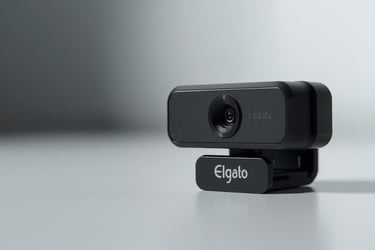
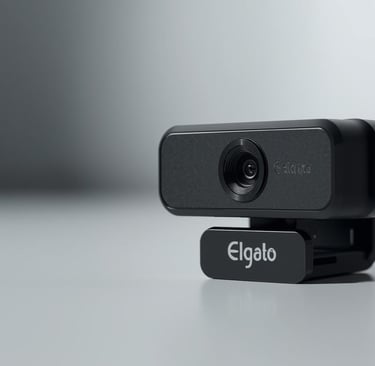
Excellent sharpness and low-light performance
Available at
Autofocus, HDR, and great versatility
Available at
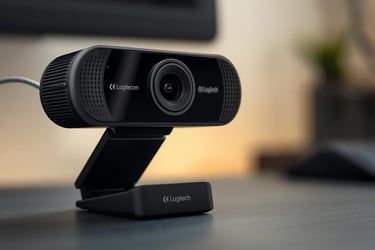
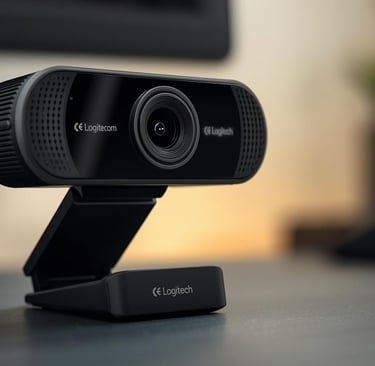
Much better than built-in laptop webcams
Available at
These models don’t just increase resolution, they fix the actual reasons webcams look blurry.
Want the Best Option for Your Setup?
Different setups need different webcams. Streaming, video calls, and YouTube recording all have different requirements.
Check out my full guide to the Best Webcams for Streaming and Content Creation, where I compare image quality, low-light performance, and value for money.
Final Thoughts
A blurry webcam isn’t always caused by a “bad camera” but there is a point where hardware becomes the bottleneck. Fix your lighting and settings first, but if clarity still matters to you, upgrading to the right webcam is often the simplest and most effective solution.